Full Trust European Hosting

BLOG about Full Trust Hosting and Its Technology - Dedicated to European Windows Hosting Customer

AngularJS Hosting Europe - HostForLIFE :: How To Prevent XSS(Cross Site Scripting) Attacks In Angular?

clock March 9, 2023 08:08 by author Peter

Hello, here we are going to discuss how to prevent XSS attacks or Cross-Site Scripting in angular applications.

When we make any web application, then security is an important part of an application where we need to secure our web application from various attacks, one of which is an XSS attack or cross-site scripting attack.

What is XSS(Cross-Site Scripting)
XSS is a kind of injection attack. Let’s consider you have an application, and that application contains the contact form or registration form, where the user enters either their queries or their information in the input field or text Area field.

For example, what happens if a hacker gives a malicious script injected in the contact form text are Like the below script and clicks on submit
<script>alert(“XSS Attack");"</script>

Now, in this case, it will open a popup, and behind the screen, the website will send the request to the hacker’s computer with the current system cookies information or your crucial information will be in the attacker's system, even if you will not even realize it that XSS attack is happening.

Generally, an XSS attack happens on DOM elements (Object data model), like input, and text area Fields, so to prevent our website from an XSS attack we need to check whether the request contains the script or not, and if it contains then we need to handle such kind of condition.

How to prevent XSS attacks in Angular?

When we create an angular application then there is also a chance to happen an XSS attack, so let’s understand it with an example.

XSS Escaping/bypass security in Angular
To prevent cross-site scripting (XSS) attacks in the angular application, we can use the built-in angular cross-site scripting (XSS) protection.

This is enabled automatically by the angular CLI.

Now let’s create an angular application and write the below code in app.component.ts
import { Component } from '@angular/core';
import { Router } from '@angular/router';
import { Angular15Service } from './angular15.service';

@Component({
    selector: 'app-root',
    templateUrl: './app.component.html',
    styleUrls: ['./app.component.css']
})
export class AppComponent {
    title = 'angular 15 App';
    username = '';
    constructor() {}
    ngOnInit() {}
}


And write the below code in app.component.html
<p >{{title}}</p>
<label for="username">Name: </label>
<textarea id="username" [(ngModel)]="username" placeholder="Name"> </textarea>
<p>{{ username }}</p>

Here we can see, we are using Two-way data binding.

So when we give any value to the text area field, the same value we are printing in the paragraph using “interpolation”

When we are running the above code and give any value in TextArea then interpolation will not able to take input as HTML and display the full input as the plain text on your web application page, this mechanism is generally called “contextual escaping” like below
<script>alert(“XSS Attack");"</script>

Angular Input Sanitization
Now let’s take another example, not instead of taking username value instead of using interpolation, here we use innerHTML.

So now let’s change the HTML code like below
<p >{{title}}</p>
<label for="username">Name: </label>
<textarea id="username" [(ngModel)]="username" placeholder="Name"> </textarea>
<p [innerHTML]="username"></p>

Now let’s run your application and see the output, unlike the interpolation, [innerHTML] also shows the text Area input value.

If you give input values as <script> format in the text area like below
<script>alert(“XSS Attack");"</script>

You will see [InnerHTML] automatically understand the <script> tag as the unsafe tag and remove it and don’t print it like below, this is called “sanitization” in Angular.

After entering the above script, you see the inspect element, which shows

So in angular unlike [innerHTML], angular has another tag like [style], [href] as well which recognizes the <script> tag.

Sanitization function in Angular

Another way to prevent the XSS attack, we can use an angular build-in function called sanitization function like the bypassSecurityTrustHtml() function.

So to sanitize the <script> tag to the page, below is the example

Below is the app.component.html
<p >{{title}}</p>
<p [innerHTML]="username"></p>

Below is the app.component.ts code
import { Component } from '@angular/core';
import { Router } from '@angular/router';
import { Angular15Service } from './angular15.service';

@Component({
    selector: 'app-root',
    templateUrl: './app.component.html',
    styleUrls: ['./app.component.css']
})
export class AppComponent {
    title = 'angular 15 App';
    username = '';
    constructor() {}
    ngOnInit() {}
}


Here we have a taken username object type of SafeHtml, it is a marker interface that gives security to the web applications from untrusted script execution on the browser.

DomSanitizer is used to sanitize the DOM element.

When you run the above code, it contains <script> tag hence we can see on the browser it doesn’t print it on the browser.

So if you are working with the angular application, it automatically secures the angular application from an XSS attack.


AngularJS Hosting Europe - HostForLIFE :: How To Create Password And Confirm Password Matching Validation In Angular?

clock February 17, 2023 08:34 by author Peter

In this article, we will learn how to create a password and confirm password matching validation in an Angular application. Password and confirm password matching validation is generally required in the registration form and password reset or create form.

Prerequisites
    Basic knowledge of Angular
    Visual Studio Code
    Node and NPM installed
    Bootstrap

For this article, I have created an Angular project using Angular 12. For creating an Angular project, we need to follow the following steps:

Create an Angular Project
Let's create a new angular project by using the following command.
ng new PassValidationExample

Open a project in Visual Studio Code using the following commands.
cd PassValidationExample
Code .


Now in Visual Studio, your project looks as below.


For validation, we need to import Validators from  '@angular/forms'
import { FormGroup, FormControl, FormBuilder, Validators } from '@angular/forms';

App.component.html
<div class="container">

    <div style="margin: 30px">
        <h1 class="ion-text-center">Register</h1>

        <form [formGroup]="loginForm">
            <div class="form-group">
                <label>First Name*</label>
                <input class="form-control" formControlName="fname" type="text" />
            </div>
            <div class="error-messages">
                <ng-container *ngFor="let error of error_messages.fname">
                    <div class="error-message" *ngIf="loginForm.get('fname').hasError(error.type) && (loginForm.get('fname').dirty || loginForm.get('fname').touched)">
                        {{ error.message }}
                    </div>
                </ng-container>
            </div>

            <div class="form-group">
                <label>Last Name*</label>
                <input class="form-control" formControlName="lname" type="text" />
            </div>
            <div class="error-messages">
                <ng-container *ngFor="let error of error_messages.lname">
                    <div class="error-message" *ngIf="loginForm.get('lname').hasError(error.type) && (loginForm.get('lname').dirty || loginForm.get('lname').touched)">
                        {{ error.message }}
                    </div>
                </ng-container>
            </div>

            <div class="form-group">
                <label>Email Id*</label>
                <input class="form-control" formControlName="email" type="text" />
            </div>
            <div class="error-messages">
                <ng-container *ngFor="let error of error_messages.email">
                    <div class="error-message" *ngIf="loginForm.get('email').hasError(error.type) &&
    (loginForm.get('email').dirty || loginForm.get('email').touched)">
                        {{ error.message }}
                    </div>
                </ng-container>
            </div>

            <div class="form-group">
                <label>Password*</label>
                <input class="form-control" formControlName="password" type="password" />
            </div>
            <div class="error-messages">
                <ng-container *ngFor="let error of error_messages.password">
                    <div class="error-message" *ngIf="loginForm.get('password').hasError(error.type) && (loginForm.get('password').dirty || loginForm.get('password').touched)">
                        {{ error.message }}
                    </div>
                </ng-container>
            </div>

            <div class="form-group">
                <label>Confirm Password*</label>
                <input class="form-control" formControlName="confirmpassword" type="password" />
            </div>
            <div class="error-messages">
                <ng-container *ngFor="let error of error_messages.confirmpassword">
                    <div class="error-message" *ngIf="loginForm.get('confirmpassword').hasError(error.type) && (loginForm.get('confirmpassword').dirty || loginForm.get('confirmpassword').touched)">
                        {{ error.message }}
                    </div>
                </ng-container>
            </div>
      <pre>
        Form Error - {{ loginForm.errors | json }}
      </pre>
            <button class="form-control btn btn-primary" [disabled]="!loginForm.valid">Signup</button>
        </form>
    </div>
</div>


App.component.ts
import { Component } from '@angular/core';
import { FormGroup, FormControl, FormBuilder, Validators } from '@angular/forms';

@Component({
  selector: 'my-app',
  templateUrl: './app.component.html',
  styleUrls: ['./app.component.css']
})
export class AppComponent {
  loginForm: FormGroup;

  error_messages = {
    'fname': [
      { type: 'required', message: 'First Name is required.' },
    ],

    'lname': [
      { type: 'required', message: 'Last Name is required.' }
    ],

    'email': [
      { type: 'required', message: 'Email is required.' },
      { type: 'minlength', message: 'Email length.' },
      { type: 'maxlength', message: 'Email length.' },
      { type: 'required', message: 'please enter a valid email address.' }
    ],

    'password': [
      { type: 'required', message: 'password is required.' },
      { type: 'minlength', message: 'password length.' },
      { type: 'maxlength', message: 'password length.' }
    ],
    'confirmpassword': [
      { type: 'required', message: 'password is required.' },
      { type: 'minlength', message: 'password length.' },
      { type: 'maxlength', message: 'password length.' }
    ],
  }

  constructor(
    public formBuilder: FormBuilder
  ) {
    this.loginForm = this.formBuilder.group({
      fname: new FormControl('', Validators.compose([
        Validators.required
      ])),
      lname: new FormControl('', Validators.compose([
        Validators.required
      ])),
      email: new FormControl('', Validators.compose([
        Validators.required,
        Validators.minLength(6),
        Validators.maxLength(30)
      ])),
      password: new FormControl('', Validators.compose([
        Validators.required,
        Validators.minLength(6),
        Validators.maxLength(30)
      ])),
      confirmpassword: new FormControl('', Validators.compose([
        Validators.required,
        Validators.minLength(6),
        Validators.maxLength(30)
      ])),
    }, {
      validators: this.password.bind(this)
    });
  }

  ngOnInit() {
  }

  password(formGroup: FormGroup) {
    const { value: password } = formGroup.get('password');
    const { value: confirmPassword } = formGroup.get('confirmpassword');
    return password === confirmPassword ? null : { passwordNotMatch: true };
  }

}


App.component.css
p {
  font-family: Lato;
}
.error-message {
  color: red;
}
input.ng-touched.ng-invalid {
  border: 1px solid red;
}

Now run the project using the following command
npm start

In this article, I have discussed the implementation of password and confirm password matching validation in Angular application.


AngularJS Hosting Europe - HostForLIFE :: How To Create A Download Progress Bar With Angular And Material Design?

clock December 20, 2022 07:03 by author Peter

To create a download progress bar with a percentage in Angular, you can use the HttpClient module to request a server and track the download's progress. Here is an example of how this can be done,
    First, install the @angular/material and @angular/cdk packages in your Angular project:
    npm install @angular/material @angular/cdk


Import the MatProgressBarModule and MatProgressSpinnerModule modules from the @angular/material package in your Angular module:
import { MatProgressBarModule, MatProgressSpinnerModule } from '@angular/material';

@NgModule({
  imports: [
    MatProgressBarModule,
    MatProgressSpinnerModule
  ],
  // ...
})
export class AppModule { }


Now, import the HttpClient module and the HttpEventType enum from the @angular/common/http package:
import { HttpClient, HttpEventType } from '@angular/common/http';

Inject the HttpClient service into your component or service using the constructor:
constructor(private http: HttpClient) {}

Create a function to make the download request and track the progress:
public percentDone: number = 0;

public downloadFile() {
  this.http.get('https://example.com/file.zip', { responseType: 'blob' })
    .subscribe(event => {
      if (event.type === HttpEventType.DownloadProgress) {
        // Update the progress bar with the download percentage
        const this.percentDone = Math.round(100 * event.loaded / event.total);
        console.log(`Downloaded ${this.percentDone}%`);
      } else if (event.type === HttpEventType.Response) {
        // Save the downloaded file
        const file = new Blob([event.body], { type: 'application/zip' });
        const fileURL = URL.createObjectURL(file);
        window.open(fileURL);
      }
    });
}


In your component's template, use the mat-progress-bar and mat-progress-spinner components to display the progress bar and percentage:
<mat-progress-bar mode="determinate" [value]="percentDone"></mat-progress-bar>
<mat-progress-spinner mode="determinate" [value]="percentDone"></mat-progress-spinner>
<p>{{percentDone}}%</p>

You can use the percentDone property to bind to the value attribute of the mat-progress-bar and mat-progress-spinner components, as well as to display the percentage as text.

This is an example of how you can create a material design download progress bar with a percentage in Angular. You can customize the appearance and behaviour of the progress bar and percentage by using the various options and styles available for the mat-progress-bar and mat-progress-spinner components.


AngularJS Hosting Europe - HostForLIFE :: Create Your First Angular 15 Application

clock December 6, 2022 07:00 by author Peter

We know Angular 15 is released on November 2022, so now in this article, we will see how to create an Angular 15 project. If you have already worked with angular previously you know, angular CLI helps us to build an angular application. Creating a new project in angular is now as simple as installing the Angular CLI and running the ng new command.


What is Angular CLI?
The Angular CLI helps us to create an Angular application and it uses Typescript, it creates an angular application with all the configuration files and the packages in one single command.

It helps us to add features (components, pipe, services, directives, etc.) to existing or new Angular applications.

How to create a new Angular 15 project

To create a new angular 15 project, first we need to set up the system environment

Installing Visual Studio Code
We need an editor to create the application so for that we need to install VS code. It is easy to install and helps us to create an angular application easily. You can download Visual Studio Code from the following link.

Node.Js

Node.js is the open source, cross-platform javascript run time environment.

Go to https://nodejs.org/en/

And install the LTS version
Install the Package Manager

To install Angular and its dependencies, we now need to install Node Package Manager (NPM).

NPM is the node.js package manager for JavaScript, which is automatically installed when we install node.js.

To see the version of NPM, run the below command on the Node.js command prompt like below
Node -v
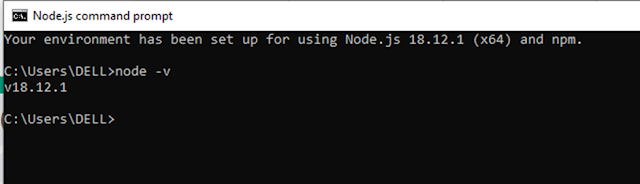
Go to the Node.js command prompt and install typescript using the below command
Npminstall –gTypescript
Angular CLI (command line interface)

It is a tool that allows us to create a project using the command line argument.

So below is the command to create the latest angular project
npminstall -g @angular/cli@latest

Once the above command runs successfully, now check the latest version of angular and run the below command
Ngversion

Since I was already working on angular 14, so for me only I need to run the Angular CLI command.
Below is the image when my angular version is v14,
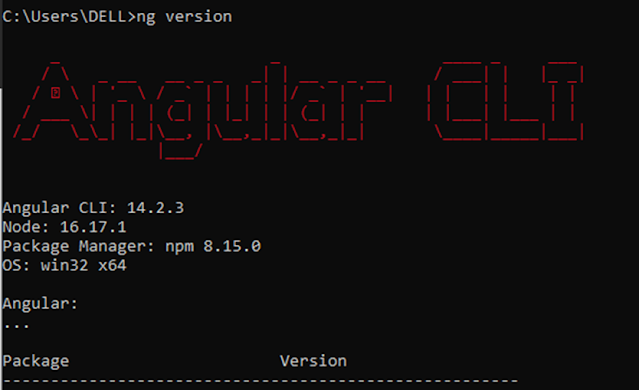
Now I ran below CLI command and then check the angular version like the below image
npminstall -g @angular/cli@latest
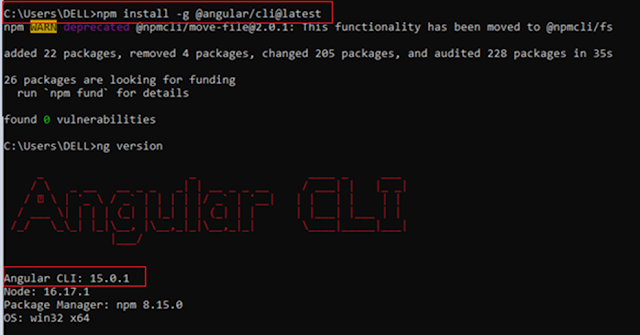
So this is the way we can upgrade the angular version to the latest version. You can also install the older version of Angular as shown below,

    MDAngular8
    cdAngular8
    npmi @angular/[email protected]

Now to create an Angular 15 application run the below command
NgnewAngular15App

Once you run the above command it will ask to install routing like below, give Y and press enter
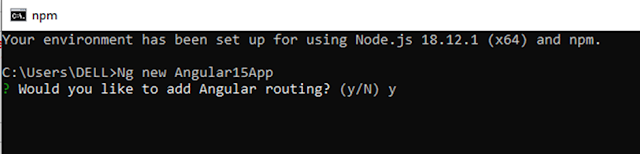
After that, it will ask to add CSS like the below,
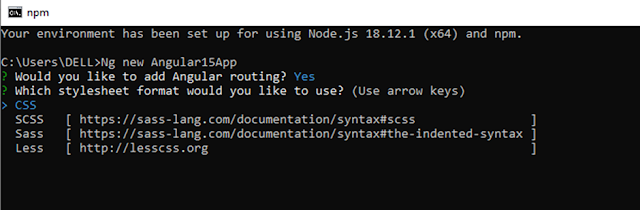
Once you press enter, it will take a few minutes to create the Angular 15 Application.
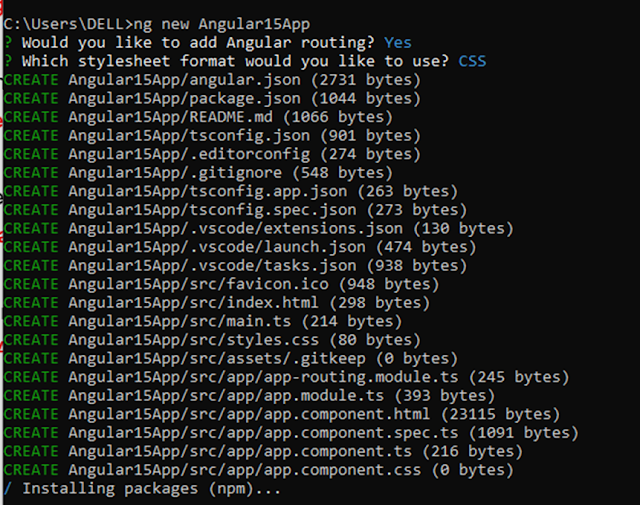
So from above, we can see, the angular 15 project creation is in progress.
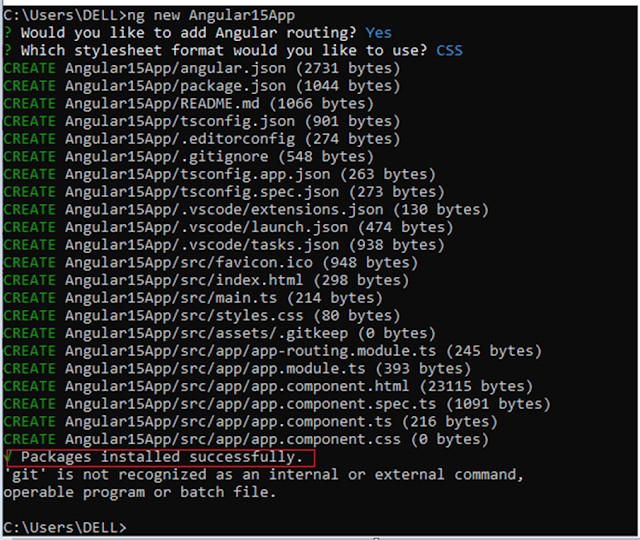
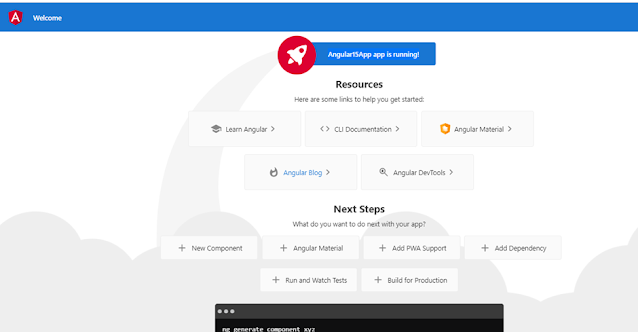
From the above image, we can see, the angular 15 projects was created successfully. After creating this project, now let's open the VS code, go File tab then select the folder, and go to the directory where we created the angular 15 project, from there, select the angular15 project folder. Once you will load the project, you will see all files in VS code.

Now run the ng serve –o command, it will open the angular15 project like below
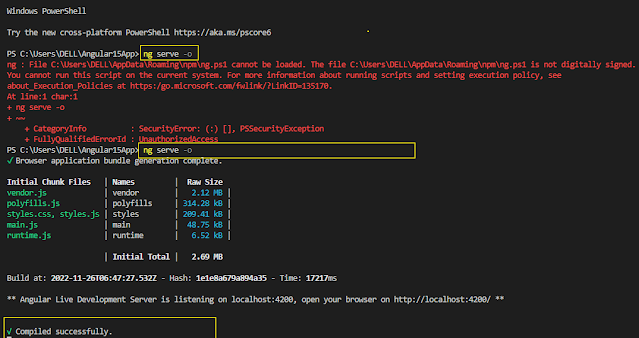
 

If you face an error like below then delete ng.ps1 file
PS C:\Users\DELL\Angular15App> ng serve -o

ng : File C:\Users\DELL\AppData\Roaming\npm\ng.ps1 cannot be loaded. The file C:\Users\DELL\AppData\Roaming\npm\ng.ps1 is not digitally signed.
You cannot run this script on the current system. For more information about running scripts and setting execution policies, see
about_Execution_Policies at https:/go.microsoft.com/fwlink/?LinkID=135170.

Then follow the below points then run ng serve –o again,
    Delete ng.ps1 from the directory C:\Users\% usernam%\AppData\Roaming\npm\
    Try to clear the npm cache directory C:\Users\%usernam%\AppData\ Roaming\npm-cache\

Note - Sometimes without clearing the cache also, the above error is resolved.
Now to verify that this application is created in Angular15, just go to the package.json file and see all the libraries are in v15 like below.
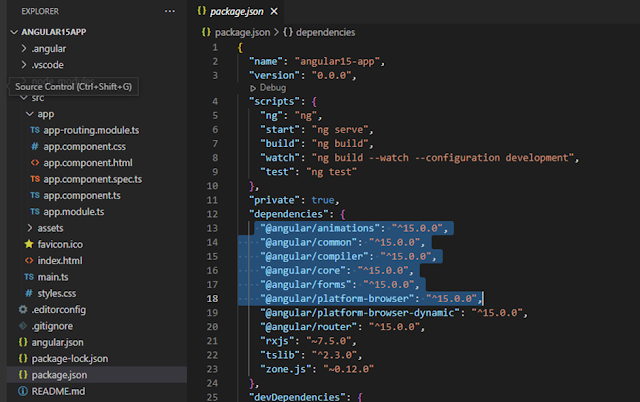
To build the application below is the command
ng build

To run the application below is the command
ng serve

after serving the application, go to the browser and enter the below URL, this is the default URL where the angular application run.
http://localhost:4200/


AngularJS Hosting Europe - HostForLIFE :: How To Use HTTP Interceptor In Angular?

clock November 28, 2022 07:16 by author Peter

Angular Interceptor helps us modify the HTTP request by intercepting it before the request is sent to the backend. You can also change the incoming response from the backend. The Interceptor globally captures all incoming and outgoing requests in one place. We can use it to add custom headers to the outgoing request, log the incoming response, etc.


What is HTTP Interceptor?
An Angular HTTP interceptor sits between your application and the backend. When the application makes a request, the interceptor sees the request (HttpRequest) before sending it to the backend. You can access the request headers and body by intercepting the request. This allows us to transform the request before sending it to the server.


When the response (HttpResponse) arrives from the backend, interceptors can transform it before forwarding it to the application. One of the main advantages of HTTP interceptors is the ability to add an Authorization header to every request. You can do this manually, but it's tedious and error-prone. Another benefit is the ability to catch and log errors generated by requests.

How to Create Interceptor?
To implement an interceptor, we need to create an injectable service that implements the HttpInterceptor interface.
@Injectable() export class MyHttpInterceptor implements HttpInterceptor {

This class should implement the Intercept method
intercept(req: HttpRequest<any>, next: HttpHandler): Observable<HttpEvent<any>> {
    //Do the code whatever you want with the HTTP request

    return next.handle(req);
}


This class is exposed in the root module using the HTTP_INTERCEPTORS injection token.
providers: [
    {
        provide: HTTP_INTERCEPTORS,
        useClass: MyHttpInterceptor,
        multi: true
    }
],


Interface: HTTP Interceptor
At the guts of the Interceptor, logic is the HttpInterceptor Interface. we have a tendency to should Implement it in our Interceptor Service.

The interface contains one method Intercept with the subsequent signature
intercept(req: HttpRequest<any>, next: HttpHandler): Observable<HttpEvent<any>>

HTTP Request
The first argument is HttpRequest.

HttpRequest is an intercepted outgoing HTTP request. It integrates URLs, methods, headers, body, and various request configurations.

HttpRequest is an immutable class. In any way, we cannot accommodate genuine claims. To make adjustments, we want to duplicate the original request using the HttpRequest.clone

HTTP Handler

The second argument is httpHandler

HttpHandler sends the HttpRequest to the next Controller using the HttpHandler.handleMethod. The next handler can be another interceptor in on Thread or the Http Backend.

Let's see the example

Create MyHttpInterceptor.ts under /app folder and paste the below code
import {Injectable} from "@angular/core";
import {HttpEvent, HttpHandler, HttpInterceptor,HttpRequest} from "@angular/common/http";
import {Observable} from "rxjs/Observable";

@Injectable()
export class MyHttpInterceptor implements HttpInterceptor {
    constructor() {
    }

    intercept(req: HttpRequest<any>, next: HttpHandler): Observable<HttpEvent<any>> {

        return next.handle(req);
    }
}

In the body of the method, you should be able to modify the HttpRequest object. Once done, you can select the HttpHandler.handle method from the HttpHandler with the HttpRequest object. The HttpHandler.handle method calls the fighter thus or sends a request to the main server.

App.Module
Whole code from the app module
import { BrowserModule } from '@angular/platform-browser';
import { NgModule } from '@angular/core';
import { HttpClientModule,HTTP_INTERCEPTORS} from '@angular/common/http';
import { FormsModule } from '@angular/forms';

import { AppComponent } from './app.component';

import { GitHubService } from './github.service';
import {MyHttpInterceptor} from './MyHttpInterceptor';

@NgModule({
  declarations: [
    AppComponent
  ],
  imports: [
    BrowserModule,
    HttpClientModule,
    FormsModule
  ],
  providers: [GitHubService,
    {
    provide: HTTP_INTERCEPTORS,
    useClass: MyHttpInterceptor,
    multi: true
  }
],
  bootstrap: [AppComponent]
})
export class AppModule { }


If you have faced any error regarding the import module please check your package.json file and install the required package if not installed.
So, here interceptor-adding process is done let's run the app and you can see every HTTP calls interceptor, You can put the debugger in the interceptor and see.
Let's add content type using interceptor

Content Type Adding
To modify the request we want to clone it using HttpRequest.clone
req = req.clone({ headers: req.headers.set('Content-Type', 'application/json') });

The header object is also unchanged. Therefore, we need to duplicate it using the headers.set method. The header.set method copies the current header and adds/modifies the new header value and returns the copied header.

We can also use the header.append. The append technique continually appends the header albeit the worth is already present.

And we can also remove the header like the one below shown
req = req.clone({ headers: req.headers.delete('Content-Type','application/json') });

If you want to add authorization token then we can add a token as shown below
const bearerToken: string =authService.Token; // here you can use your service method where get token
if (token) {
    req = req.clone({ headers: req.headers.set('Authorization', 'Bearer ' + bearerToken) });
}


So we can change or add code as per our requirement like adding logging, modifying response, catching the errors, etc...


AngularJS Hosting Europe - HostForLIFE :: Angular CLI MODULE_NOT_FOUND Error

clock November 17, 2022 09:45 by author Peter

When we sometimes create a new project but can't create the project because of an error like the one below.

Here I have provided steps to resolve the issue.

Step 1
Run CMD as Run as administrator mode.

Step 2
Uninstall angular cli.
npm uninstall -g @angular/cli

Step 3
Remove npm package files from the appdata folder.

Step 4
Open Run option by pressing Windows + R key. Then type %appdata% and press OK.

Step 5
Open the npm folder from the Roaming folder that you got in explorer.

Step 6
Delete ng and ng.cmd files from the npm folder if exists.
Open node_modules folder from there and delete @angular and angular/cli folder if exists.

Step 7
Reinstall the angular cli
npm install -g @angular/cli

Create a new Project with the use of command

App is created and run with ng serve command like this


AngularJS Hosting Europe - HostForLIFE :: Modules And Controllers In AngularJS

clock October 25, 2022 09:43 by author Peter

In this article, we will see the role of Modules, Controllers, $scope in AngularJS Application. Module: Module in AngularJS application is a container for controllers, directive, filters, services, etc and helps in packaging code as reusable modules.

 
Creating/Defining a Module


The first parameter in angular.module() function is the name of the module and the second parameter is an array in which we can add dependencies. Here, we have not added any external modules/dependencies as we are trying to make this example as simple as possible.
 
Controller
Controller is defined by a JavaScript constructor function. Controller controls and acts as a brain for the View in AngularJS Application. Controller is attached to the DOM using the ng-controller directive. Controllers should only contain business logic.
 
Adding a Controller in our angular module


In the above code, we have added a controller with our angular module (i.e. myApp) using Controller method of the module. In Controller method, the first parameter is name of the controller and second is function representing the controller.
 
$scope acts as a glue between application controller and the view. $scope is dynamically injected into controller's function. We have added some data to $scope properties.

Here, we have added our module and controller in View using ng-App and ng-controller directive of AngularJS.
    <!DOCTYPE html>  
    <html xmlns="http://www.w3.org/1999/xhtml">  
    <head>  
        <title>Working with Controller</title>  
        <script src="Script/angular.js"></script>  
        <script>  
            // Declare a module  
            var myApp = angular.module('myApp', []);  
            //Registering a controller in myApp module  
            myApp.controller('myController', function ($scope) {  
                $scope.Name = "Peter Scott";  
                $scope.Website = "www.ittutorialswithexample.com";  
            });  
        </script>  
    </head>  
    <body ng-app="myApp">  
        <div ng-controller="myController">  
            Name:{{Name}}<br />  
            Website:{{Website}}  
        </div>  
    </body>  
    </html>  


Let's save and run the application.

Hope you liked it. Thanks!


AngularJS Hosting Europe - HostForLIFE :: Lazy Loading In Angular With Example

clock October 17, 2022 10:29 by author Peter

In this article, we will see about lazy loading concept in Angular with an example for your understanding.

Lazy loading
Instead of loading all the modules and components in an application it allows only selected module and components to load thus reducing the loading time. Lazy loading feature loads components, modules, and other files of Angular application only when required. This concept is used in complex and larger applications. Lazy loading concept makes an application very fast and uses less memory.

Let us see one example on this lazy loading,

Eg
We will start by creating a new Angular application for easy understanding,

Step 1
Open a command prompt or terminal. Create a new project:
> ng new LazyDemo


make sure to allow routing when creating new project or you can simply use the command : > ng new LazyDemo --routing
> cd LazyDemo

Step 2
Create 3 components or any numbers of your choice just for demo purpose. I'm creating 3 components,
> ng generate component Number1
  ng generate component Number2
  ng generate component Number3

Step 3
Create respective module files in each of the component folders,
> Number1.module.ts
  Number2.module.ts
  Number3.module.ts

Now our file/folder structure will look like this,

Step 4
Create a respective router module file in each component folder,
> Number1-routing.module.ts
  Number2-routing.module.ts
  Number3-routing.module.ts

Step 5
Import the Router Module in the main application module  app.module.ts,
import { AppRoutingModule } from './app-routing.module';

imports: [
  BrowserModule,
  AppRoutingModule
],


Since we have enabled routing at beginning it will be already imported in app.module.ts, In case you forget to apply routing at beginning you can add this, otherwise you can skip this step.

Step 6
Add the code in their own routing modules, Add following code in Number1-routing.module.ts,
import { NgModule } from "@angular/core";
import { RouterModule, Routes } from "@angular/router";
import { Number1Component } from "./number1.component";

const routes: Routes = [
    { path:"", component: Number1Component }
];

@NgModule({
    exports: [RouterModule],
    imports:[RouterModule.forChild(routes)]
})

export class Number1RouterModule{}


Here instead of forRoot we called forChild as these are child modules which will be called in app’s main routing module.


The following codes,
import { NgModule } from "@angular/core";
import { RouterModule, Routes } from "@angular/router";
import { Number2Component } from "./number2.component";

const routes: Routes = [
    { path:"", component: Number2Component }
];

@NgModule({
    exports: [RouterModule],
    imports:[RouterModule.forChild(routes)]
})

export class Number2RouterModule{}


In Number3-routing.module.ts add the following codes,
import { NgModule } from "@angular/core";
import { RouterModule, Routes } from "@angular/router";
import { Number3Component } from "./number3.component";

const routes: Routes = [
    { path:"", component: Number3Component }
];

@NgModule({
    exports: [RouterModule],
    imports:[RouterModule.forChild(routes)]
})

export class Number3RouterModule{}

In Number1.module.ts add following code,
import { NgModule } from "@angular/core";
import { Number1RouterModule } from "./Number1-routing.module";
import { Number1Component } from "./number1.component";

@NgModule({
    declarations:[Number1Component],
    imports:[Number1RouterModule],
    providers: []

})
export class Number1Module{

}


Similarly add same in the other two files Number2.module.ts and Number3.module.ts,
In Number2.module.ts add the following code,
import { NgModule } from "@angular/core";
import { Number2RouterModule } from "./Number2-routing.module";
import { Number2Component } from "./number2.component";

@NgModule({
    declarations:[Number2Component],
    imports:[Number2RouterModule],
    providers: []

})
export class Number1Module{

}


In Number3.module.ts add the following code,
import { NgModule } from "@angular/core";
import { Number3RouterModule } from "./Number3-routing.module";
import { Number3Component } from "./number3.component";

@NgModule({
    declarations:[Number3Component],
    imports:[Number3RouterModule],
    providers: []

})
export class Number3Module{

}


Step 7
Define Routes using loadChildred attribute in app’s main routing module. In main app-routing.module.ts add the following code,
import { NgModule } from '@angular/core';
import { RouterModule, Routes } from '@angular/router';

const routes: Routes = [
  {
    path: 'number1',
    loadChildren: () => import('../app/number1/Number1.module').then(x => x.Number1Module)
 },
 {
  path: 'number2',
  loadChildren: () => import('../app/number2/Number2.module').then(x => x.Number2Module)
},
{
  path: 'number3',
  loadChildren: () => import('../app/number3/Number3.module').then(x => x.Number3Module)
},
];

@NgModule({
  imports: [RouterModule.forRoot(routes)],
  exports: [RouterModule],
  providers:[]
})
export class AppRoutingModule { }

For your reference,


We will define child modules in loadChildren attribute defining imports and each independent module’s name and its path.

Step 8
Add routing links to Route HTML page, In app.component.html add the following,
<!--The content below is only a placeholder and can be replaced.-->
<div style="text-align:center">
  <h2>
    {{ title }}
  </h2>
  <button><a [routerLink]="['/number1']" routerLinkActive="router-link-active" >Number One</a></button><span></span>
  <button><a [routerLink]="['/number2']" routerLinkActive="router-link-active" >Number Two</a></button><span></span>
  <button><a [routerLink]="['/number3']" routerLinkActive="router-link-active" >Number Three</a></button>
</div>
<router-outlet></router-outlet>


Now run the application using ng serve

Output

You can check the working of this lazy loading by inspecting, To do so, press  Ctrl+shift+I. Now under Networks tab you can see the components are not loaded initially.


Now if you click on to Number one component button, that component alone will get loaded,


If you click on Number two component buttton, that component will get loaded,


It actually reduces the memory occupied by loading only the required resources and it is applied in large applications. Components are loaded after we click on the link, they are not loaded on application initialization or app start. I hope this article would be helpful for you with example and simple definitions.

Thank you!


AngularJS Hosting Europe - HostForLIFE :: Lazy Loading In Angular With Example

clock October 17, 2022 10:29 by author Peter

In this article, we will see about lazy loading concept in Angular with an example for your understanding.


Lazy loading
Instead of loading all the modules and components in an application it allows only selected module and components to load thus reducing the loading time. Lazy loading feature loads components, modules, and other files of Angular application only when required. This concept is used in complex and larger applications. Lazy loading concept makes an application very fast and uses less memory.

Let us see one example on this lazy loading,

Eg
We will start by creating a new Angular application for easy understanding,

Step 1
Open a command prompt or terminal. Create a new project:
> ng new LazyDemo


make sure to allow routing when creating new project or you can simply use the command : > ng new LazyDemo --routing
> cd LazyDemo

Step 2
Create 3 components or any numbers of your choice just for demo purpose. I'm creating 3 components,
> ng generate component Number1
  ng generate component Number2
  ng generate component Number3

Step 3
Create respective module files in each of the component folders,
> Number1.module.ts
  Number2.module.ts
  Number3.module.ts

Now our file/folder structure will look like this,

Step 4
Create a respective router module file in each component folder,
> Number1-routing.module.ts
  Number2-routing.module.ts
  Number3-routing.module.ts

Step 5
Import the Router Module in the main application module  app.module.ts,
import { AppRoutingModule } from './app-routing.module';

imports: [
  BrowserModule,
  AppRoutingModule
],


Since we have enabled routing at beginning it will be already imported in app.module.ts, In case you forget to apply routing at beginning you can add this, otherwise you can skip this step.

Step 6
Add the code in their own routing modules, Add following code in Number1-routing.module.ts,
import { NgModule } from "@angular/core";
import { RouterModule, Routes } from "@angular/router";
import { Number1Component } from "./number1.component";

const routes: Routes = [
    { path:"", component: Number1Component }
];

@NgModule({
    exports: [RouterModule],
    imports:[RouterModule.forChild(routes)]
})

export class Number1RouterModule{}


Here instead of forRoot we called forChild as these are child modules which will be called in app’s main routing module.


The following codes,
import { NgModule } from "@angular/core";
import { RouterModule, Routes } from "@angular/router";
import { Number2Component } from "./number2.component";

const routes: Routes = [
    { path:"", component: Number2Component }
];

@NgModule({
    exports: [RouterModule],
    imports:[RouterModule.forChild(routes)]
})

export class Number2RouterModule{}


In Number3-routing.module.ts add the following codes,
import { NgModule } from "@angular/core";
import { RouterModule, Routes } from "@angular/router";
import { Number3Component } from "./number3.component";

const routes: Routes = [
    { path:"", component: Number3Component }
];

@NgModule({
    exports: [RouterModule],
    imports:[RouterModule.forChild(routes)]
})

export class Number3RouterModule{}

In Number1.module.ts add following code,
import { NgModule } from "@angular/core";
import { Number1RouterModule } from "./Number1-routing.module";
import { Number1Component } from "./number1.component";

@NgModule({
    declarations:[Number1Component],
    imports:[Number1RouterModule],
    providers: []

})
export class Number1Module{

}


Similarly add same in the other two files Number2.module.ts and Number3.module.ts,
In Number2.module.ts add the following code,
import { NgModule } from "@angular/core";
import { Number2RouterModule } from "./Number2-routing.module";
import { Number2Component } from "./number2.component";

@NgModule({
    declarations:[Number2Component],
    imports:[Number2RouterModule],
    providers: []

})
export class Number1Module{

}


In Number3.module.ts add the following code,
import { NgModule } from "@angular/core";
import { Number3RouterModule } from "./Number3-routing.module";
import { Number3Component } from "./number3.component";

@NgModule({
    declarations:[Number3Component],
    imports:[Number3RouterModule],
    providers: []

})
export class Number3Module{

}


Step 7
Define Routes using loadChildred attribute in app’s main routing module. In main app-routing.module.ts add the following code,
import { NgModule } from '@angular/core';
import { RouterModule, Routes } from '@angular/router';

const routes: Routes = [
  {
    path: 'number1',
    loadChildren: () => import('../app/number1/Number1.module').then(x => x.Number1Module)
 },
 {
  path: 'number2',
  loadChildren: () => import('../app/number2/Number2.module').then(x => x.Number2Module)
},
{
  path: 'number3',
  loadChildren: () => import('../app/number3/Number3.module').then(x => x.Number3Module)
},
];

@NgModule({
  imports: [RouterModule.forRoot(routes)],
  exports: [RouterModule],
  providers:[]
})
export class AppRoutingModule { }

For your reference,


We will define child modules in loadChildren attribute defining imports and each independent module’s name and its path.

Step 8
Add routing links to Route HTML page, In app.component.html add the following,
<!--The content below is only a placeholder and can be replaced.-->
<div style="text-align:center">
  <h2>
    {{ title }}
  </h2>
  <button><a [routerLink]="['/number1']" routerLinkActive="router-link-active" >Number One</a></button><span></span>
  <button><a [routerLink]="['/number2']" routerLinkActive="router-link-active" >Number Two</a></button><span></span>
  <button><a [routerLink]="['/number3']" routerLinkActive="router-link-active" >Number Three</a></button>
</div>
<router-outlet></router-outlet>


Now run the application using ng serve

Output

You can check the working of this lazy loading by inspecting, To do so, press  Ctrl+shift+I. Now under Networks tab you can see the components are not loaded initially.


Now if you click on to Number one component button, that component alone will get loaded,


If you click on Number two component buttton, that component will get loaded,


It actually reduces the memory occupied by loading only the required resources and it is applied in large applications. Components are loaded after we click on the link, they are not loaded on application initialization or app start. I hope this article would be helpful for you with example and simple definitions.

Thank you!


AngularJS Hosting Europe - HostForLIFE :: Update Angular For Environment And Project

clock October 3, 2022 12:18 by author Peter

A - Introduction
We need to realize that updating Angular CLI for environment, or say, globally, and for a specific project or application, or say locally are different.  We will discuss them in this article respectively.

This is the content of this article:

    A - Introduction
    B - Update Angular for Environment
    C - Angular Global Update will not Affect Individual Project
    D - Update Angular for Project
    E - Update Angular for Project: Sample

B - Update Angular for Environment
In order to update the angular-cli package installed globally in your system, you need to run:
    npm uninstall -g @angular/cli
    npm install -g @angular/cli@latest


Step 1: Check the Current Version
Open a window console, type command to view the installed Angular version:
ng v

Step 2: Uninstall Angular globally
We see the current installed Angular version is 12.2.17, uninstall the Angular CLI globally by
npm uninstall -g @angular/cli

Step 3: Install Angular Globally
After uninstalling, check the angular version again by ng v, You will see the system has not recognized the ng command anymore. Reinstall Angular globally by
npm install -g @angular/cli@latest

Step 4: Check the Angular version again, by ng v:

Now, the environment has been updated to Angular V 14.2.3, the current version.

C - Angular Global Update will not Affect Individual Project
However, the global Angular update will not affect project, or local, Angular version. For example, we have a project with version 11.1.2, while the global Angular CLI version is 12.2.0, as shown below, when we run command:

Step 1: Check the current project Angular Version and the Environment Angular Version (global)
Run the version check command in the project folder:

ng v

We can see the Angular version for the project is 11.1.2, while the environment, global, is 12.2.6.

Step 2: Uninstall the current Angular Version
npm uninstall -g @angular/cli

Angular is uninstalled globally, when we run the command ng v to check Angular version, the ng command is not recognized:

The local version in the project is uninstalled, too:

\

Step 3: Reinstall Angular Globally
We run the global update command from this project folder:
npm install -g @angular/cli@latest

Step 4: Check Angular version
Outside of the project, we have the global version as 14.2.4:


while the local version is still kept the same as version 11.1.2


i.e., the uninstall/install command does not work for an existing Angular Project

D - Update Angular for Project
For Angular project update, we need to use update command, instead of uninstall/install commands:  

Get Update from Angular Update Guide
Starting from Angular 6, the process of upgrading or updating the Angular apps to the latest version has become very easy. You can follow this Angular Update Guide step by step:
    Choose the Current version Angular and the version you wish to upgrade
    Select the App Complexity as Advanced
    Choose other dependencies
    Choose your package manager
    Click on Show me how to update

The above gives the detailed steps needed to update Angular to the latest version. The list contains three sections. Before Update, During the update, After update. All you needed to do is follow those steps. Get Update Angular Update Guide Following the Compiler Instruction:

We can get the same from another approach:
In some case, for example, when we get a project from DevOps Server or GitHub Server, or we switch the project from different branch of git, when we try to run the project, we get this error:

After running npm install to get the packages sometimes we got the issue resolved, sometimes, we might get a notice to update our local Angular Version:


Check the version,


The project Angular version is 11.1.2 while the global version is 14.2.2:
Now, we need to update the Angular for this project from Version 11.1.2 to 14, we follow the instruction from Angular Notice (in green frame)


Follow the link: https://update.angular.io/, choose the correct version, here from 11 to 14:


We got these suggestions:


E - Update Angular for Project: Sample
Following the instruction, we update the Project Angular CLI step by step:
Step 1: update Angular from version 11 to 12:


Command failed.
Follow the instruction, and rerun the command with "--force":


Command successes. Check the version:


The Project Angular CLI version has been updated to V 12. Before we update it to V 13, follow the instruction, we should check if the TypeScript version and the Node.js Version are satisfied for the requirement:


Check TypeScript and Node.js versions:

They are good, then we move to the next step,
Step 2: update Angular from version 12 to 13:

We got difficulty: Repository is not clean:

that was caused by we updated local Angular CLI version from 11 to 12,

Note
Look at the changed files inside, we can know what changes we have made,


This is the update of package.json that indicates the Angular components versions from 11 updated to 12, while the TepyScript version from 4.1.2 to 4.3.5.

the file, angular,.json indicates, for Angular 11, aot is set as true by default, while in Angular 12, this default choice even disappeared. This indicates the fact:

    AOT --- Ahead-of-time (AOT) compilation
        Although it was introduced in Version 8 as a choice, such as with the command ng build --prod
        By default since Version 9, set "aot": true in angular.json file;
        In version 12, JIT will be deprecated associated with View Engine

Save them to git,

Rerun

Step 3: update Angular from version 13 to 14:
Finally, we got:

Run the project:

We have done the Project Angular Update process.


About HostForLIFE

HostForLIFE is European Windows Hosting Provider which focuses on Windows Platform only. We deliver on-demand hosting solutions including Shared hosting, Reseller Hosting, Cloud Hosting, Dedicated Servers, and IT as a Service for companies of all sizes.

We have offered the latest Windows 2019 Hosting, ASP.NET 5 Hosting, ASP.NET MVC 6 Hosting and SQL 2019 Hosting.


Tag cloud

Sign in